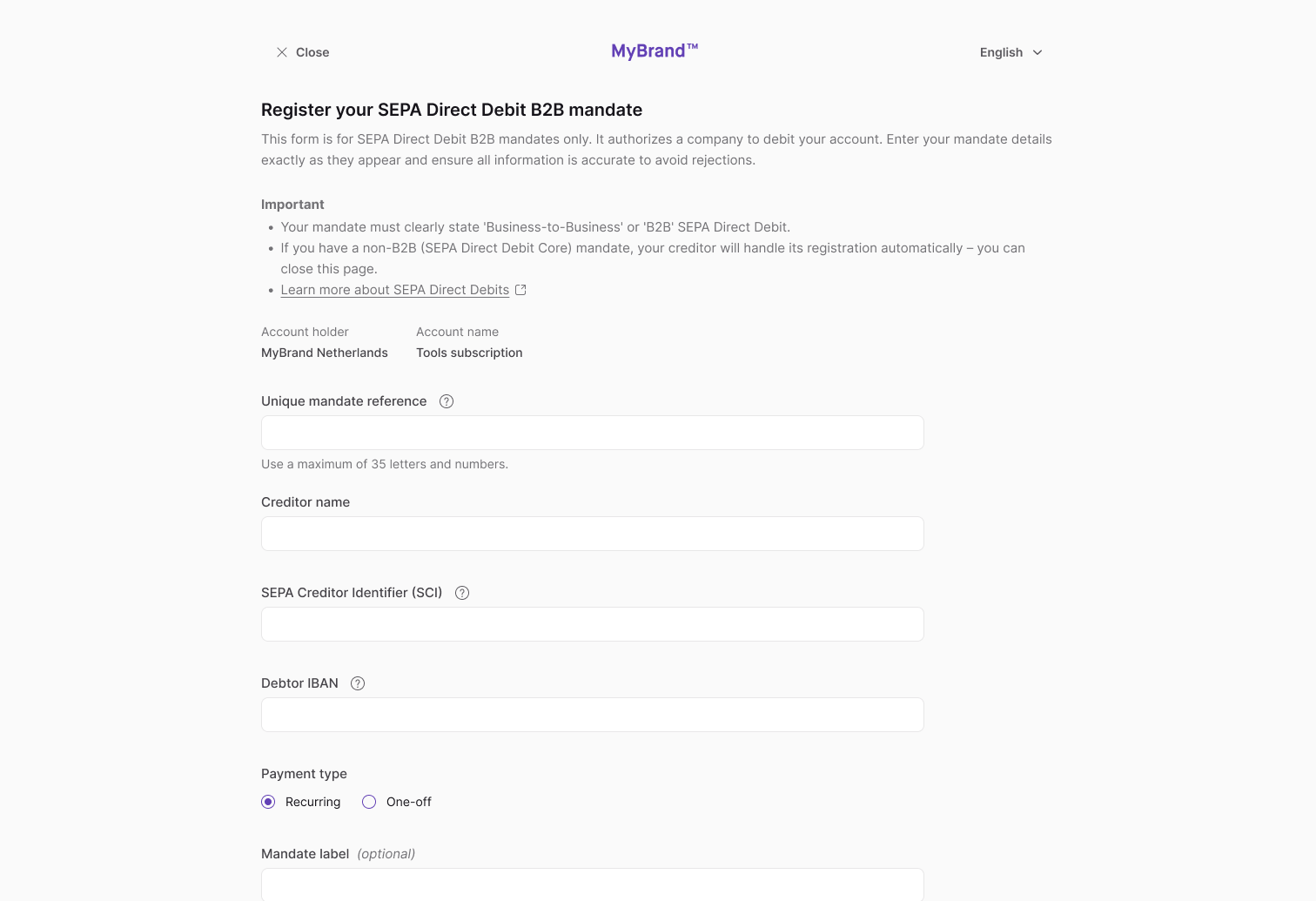
Add a payment mandate
Add SEPA Direct Debit B2B (Business-to-Business) received payment mandates with the API or by sending a link to an account member so they can register the mandate themselves.
This guide is for SEPA Direct Debit B2B mandates only. These mandates are required to authorize a company to debit an account. If an account member completes a non-B2B Direct Debit mandate, their creditor will handle its registration automatically.
When Swan receives new SEPA Direct Debit instructions, the corresponding mandate is added automatically.
Add with API
Add mandates programmatically using the addReceivedSepaDirectDebitB2bMandate mutation.
- You're an account member with the
canInitiatePaymentsmembership permission. - You're authenticating with a user access token.
Guide
- Call the
addReceivedSepaDirectDebitB2bMandatemutation. - Add the Unique Mandate Reference (
mandateReference) and SEPA Creditor Identifier (creditorIdentifier). - Add the creditor's name, plus your Swan IBAN and consent redirect URL.
- Choose whether the mandate can be used once (
OneOff) or multiple times (Recurrent). - Add the
AddReceivedSepaDirectDebitB2bMandateSuccessPayload, including theconsentUrl. - Add rejections (not shown).
Mutation
Open in API Explorermutation AddReceivedMandate {
addReceivedSepaDirectDebitB2bMandate(
input: {
mandateReference: "$YOUR_URM"
creditorIdentifier: "$YOUR_SCI"
creditorName: "Katherine Johnson"
iban: "$SWAN_IBAN"
sequence: OneOff
consentRedirectUrl: "$YOUR_REDIRECT_URL"
}
) {
... on AddReceivedSepaDirectDebitB2bMandateSuccessPayload {
__typename
receivedDirectDebitMandate {
statusInfo {
status
... on ReceivedDirectDebitMandateStatusInfoConsentPending {
__typename
consent {
consentUrl
}
status
}
... on ReceivedDirectDebitMandateStatusInfoEnabled {
__typename
enabledAt
status
}
}
}
}
}
}
Payload
The payload shows the mandate was added successfully with the status ConsentPending, and provides the consentUrl (line 10).
Make sure to send the consentUrl to your user so they can provide consent for the mandate.
{
  "data": {
    "addReceivedSepaDirectDebitB2bMandate": {
      "__typename": "AddReceivedSepaDirectDebitB2bMandateSuccessPayload",
      "receivedDirectDebitMandate": {
        "statusInfo": {
          "status": "ConsentPending",
          "__typename": "ReceivedDirectDebitMandateStatusInfoConsentPending",
          "consent": {
            "consentUrl": "https://identity.swan.io/consent?consentId=$YOUR_CONSENT_ID&env=Sandbox"
          }
        }
      }
    }
  }
}
Send a SEPA B2B mandate registration link
Send a link to an account member with the canInitiatePayments membership permission so they can complete the mandate registration.
Step 1: Send link to account member
- Go to Dashboard > Data > Accounts.
- Click the account you need.
- Go to the Received Direct Debit Mandates tab.
- Click Copy SDD B2B mandate form link.
- Share the link with an account member with the
canInitiatePaymentsmembership permission.
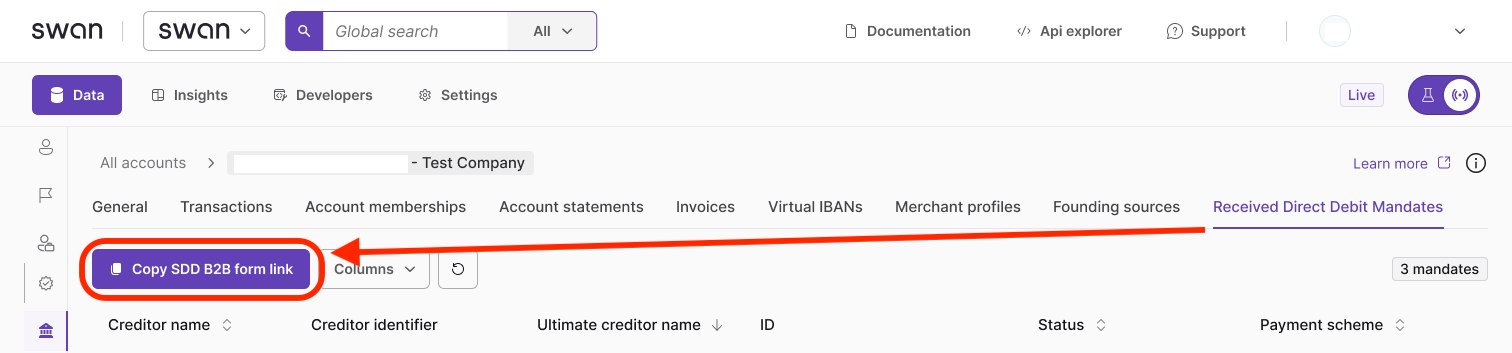
Account members can save the link to register future mandates.
Step 2: Account member completes process
- The account member opens the link you provided.
- They log into Swan's banking interface.
- They enter their B2B mandate details exactly as shown on the original mandate.
- They consent to adding the payment mandate with Strong Customer Authentication.